School scheduling guide
How to Schedule Recurring School Lessons Around Holidays
Choose the repeat end date. See which lessons will be saved. Keep later clashes visible.
1. Choose the days and the end date
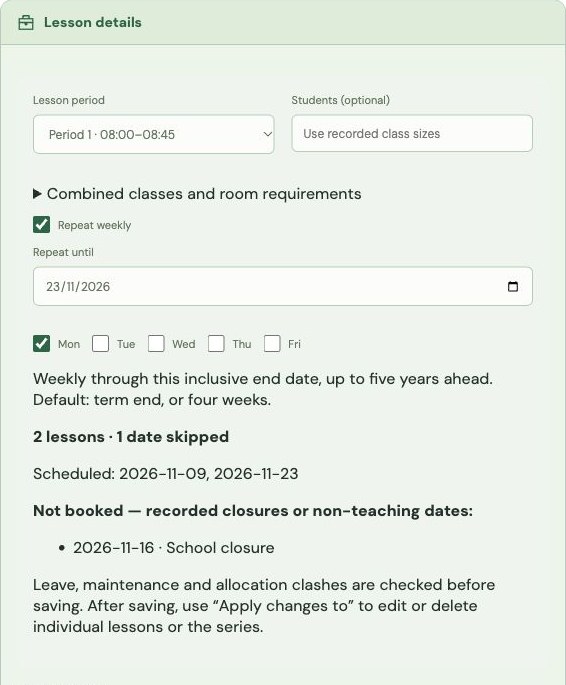
In School, select New booking → Booking. Lesson period and Repeat weekly are near the top. Tick Repeat weekly, choose the teaching weekdays, and set Repeat until. The end date is inclusive.
The initial end-date suggestion is the recorded term end, or four weeks ahead. You can choose another end date, up to five years from the first lesson; configured term dates still restrict which occurrences are generated.
2. Check the actual saved dates
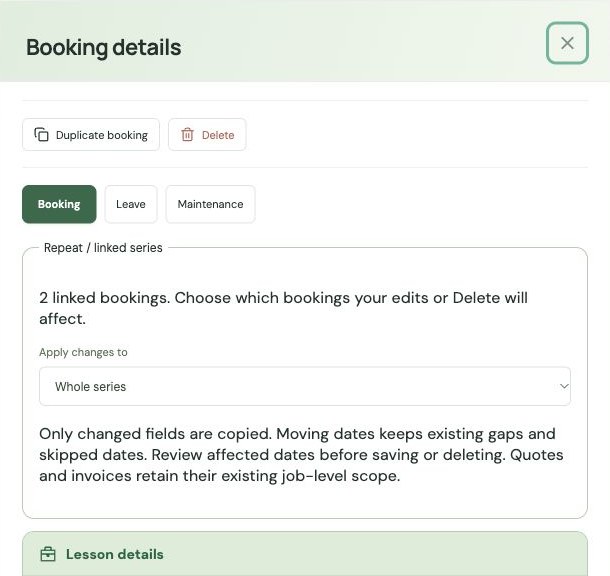
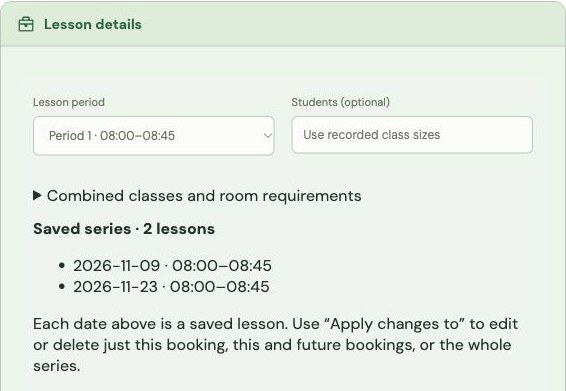
Our fictional Maths 7A lesson runs 08:00–08:45. 9 November: lesson. 16 November: closure, skipped. 23 November: lesson. Open a saved lesson to see its Saved series dates and times. Choose Apply changes to: Just this booking, This and future bookings, or Whole series. Change the required fields and save, or use Delete. A confirmation reviews the affected count and date range. The future cutoff uses the original lesson date. Existing gaps and skipped closures stay skipped.
3. What if leave or a closure is added later?
A closure already recorded at generation is skipped. A closure added after lessons are saved does not delete them. The change warns about newly affected bookings; Clashes retains the lesson and blocker so you can reschedule them. Leave, resource maintenance and School availability rules also participate in these checks.
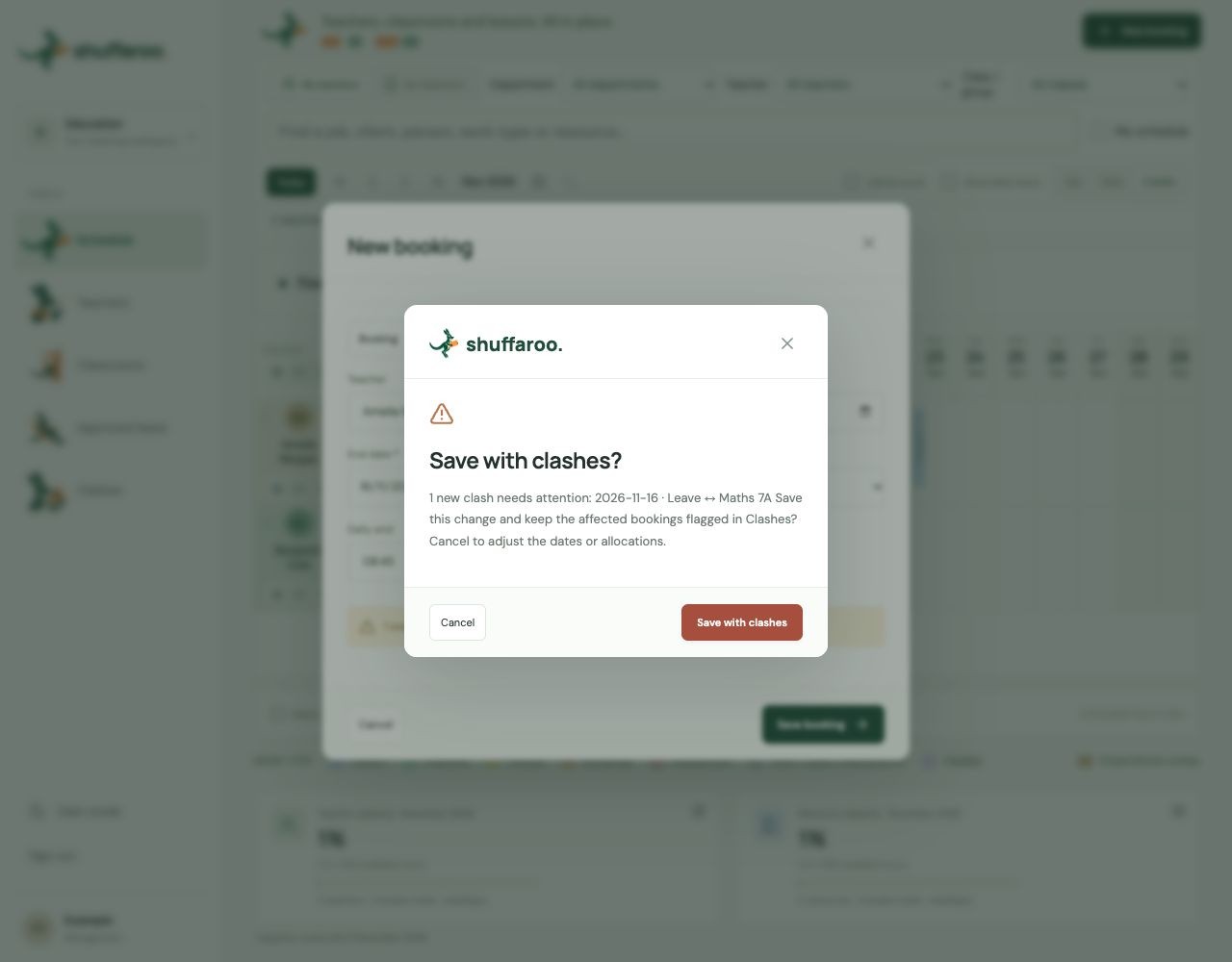
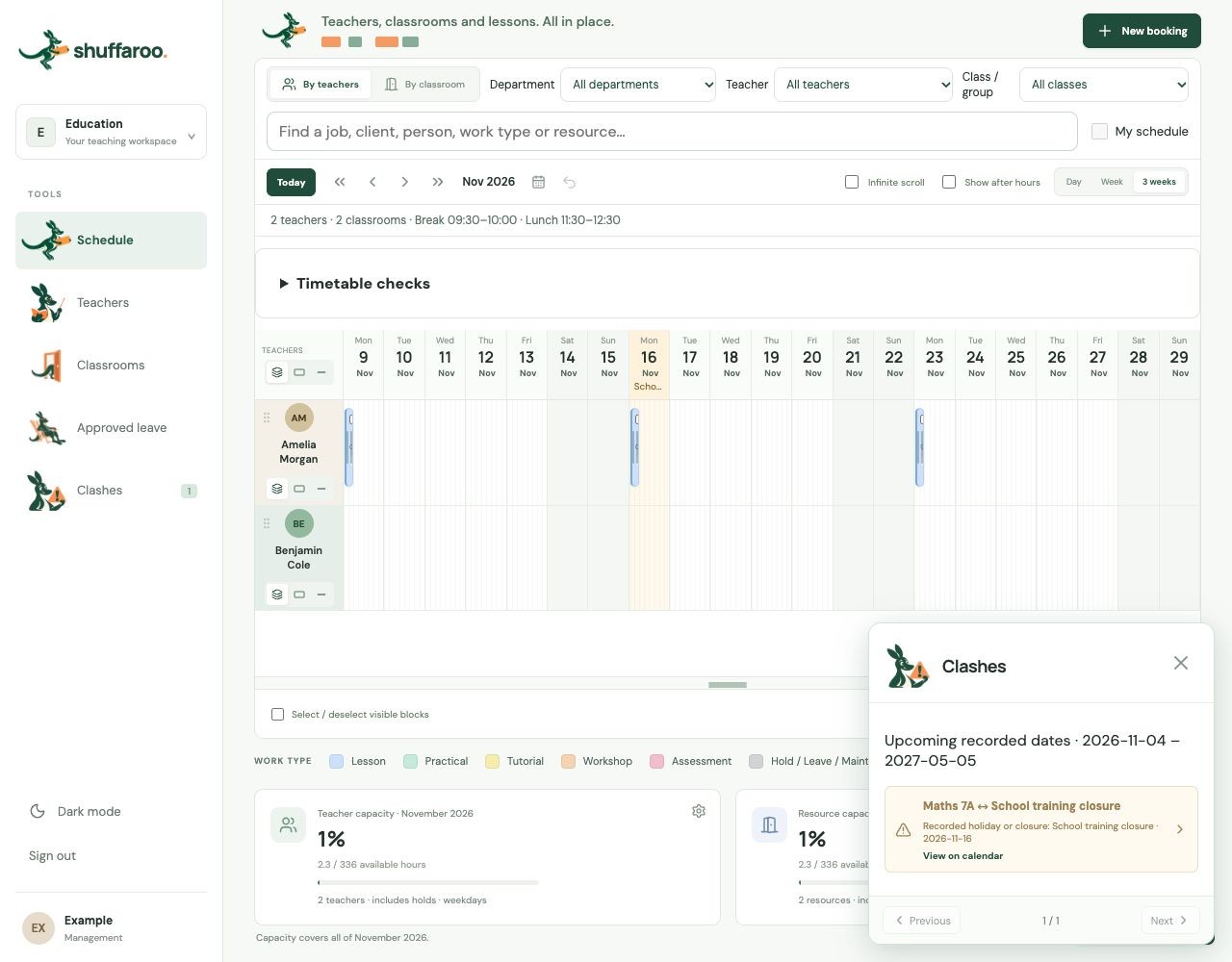
New School lessons and repeat series must also pass the existing teacher, classroom, class, period and availability checks. Resolve the reported issue before saving. These controls identify clashes; they do not automatically find substitute teachers or rebuild the timetable.
Actual application captures with fictional names and lesson data. Select any image to open its interactive visual-manual explanation.
Try School scheduling
Start free with 10 people and 10 resources. Paid plans and optional add-ons are coming soon.
Start free ↗ Open the visual user guide → · Start free ↗